

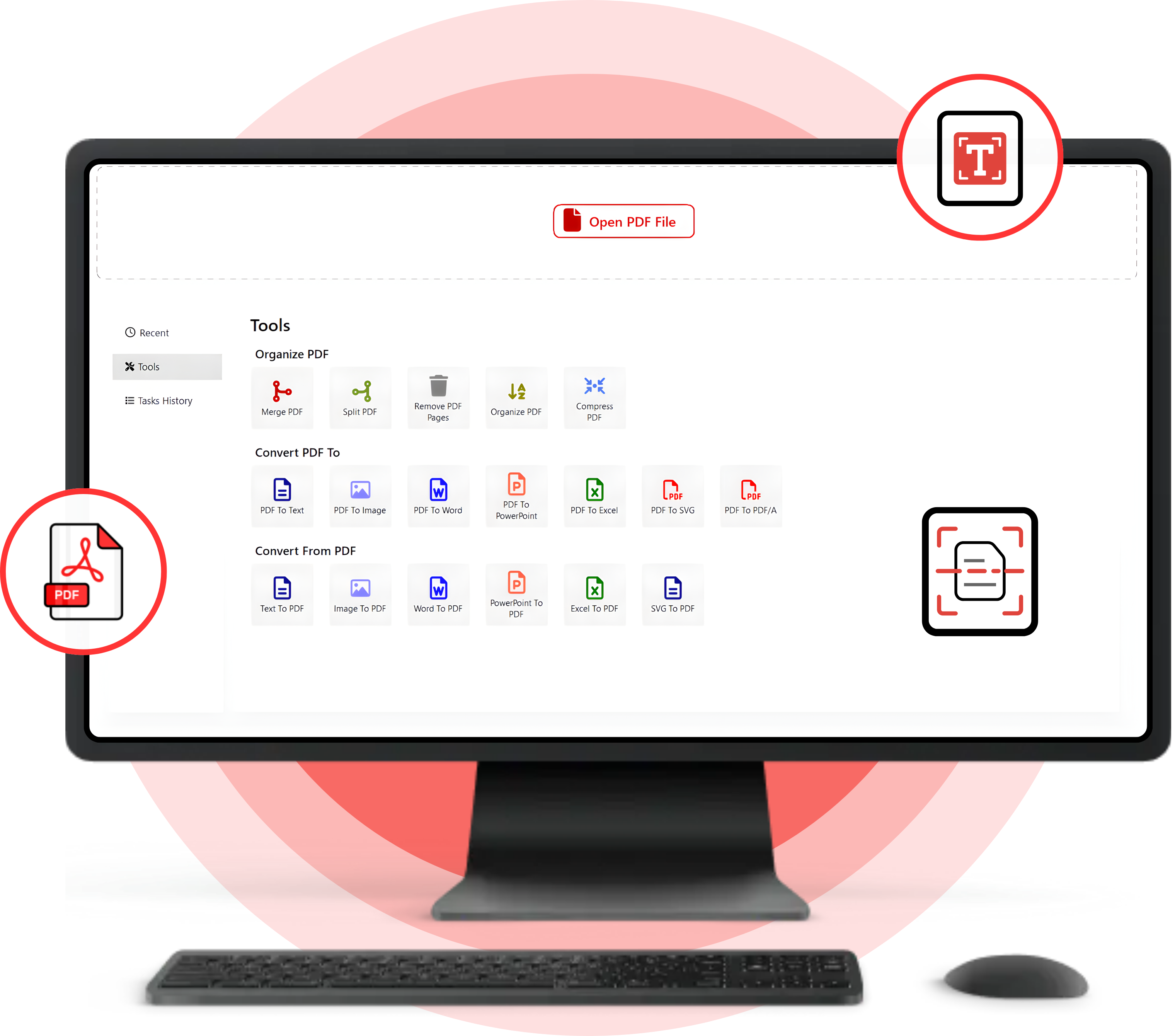
A Powerful PDF editor that allows users to scan documents, modify text, encrypt files, insert images, add annotations, include signatures, and generate fillable forms directly on their mobile devices.
 Scan IDs, create, and share PDFs instantly from your Window.
View, create, and manage PDFs easily with versatile editing tools
Secure your PDFs without watermark, password & signatures
Removes unwanted programs completely, cleans leftover files, improves system speed, enhances stability,
and ensures a smoother Windows experience with reliable uninstallation performance.

Try our free PDF converter online tool to turn Microsoft Word documents, Excel spreadsheets,

The PDF converter tool also lets you convert image files to and from PDF, including JPGs, PNGs and TIFFs.

You can either drag and drop your file or upload it directly, after which you will see it being converted to or from PDF.

Enhance your productivity by utilizing the PDF converter tool to repurpose existing file content. With cloud storage.

When you use PDF converter tools, you can rest assured that your file will have built-in security.

PDF converter invented the PDF format, so our PDF tools are of the highest quality. When you use our online PDF converter.
Edit PDFs your way with Shield Secure Solutions PDF Editor
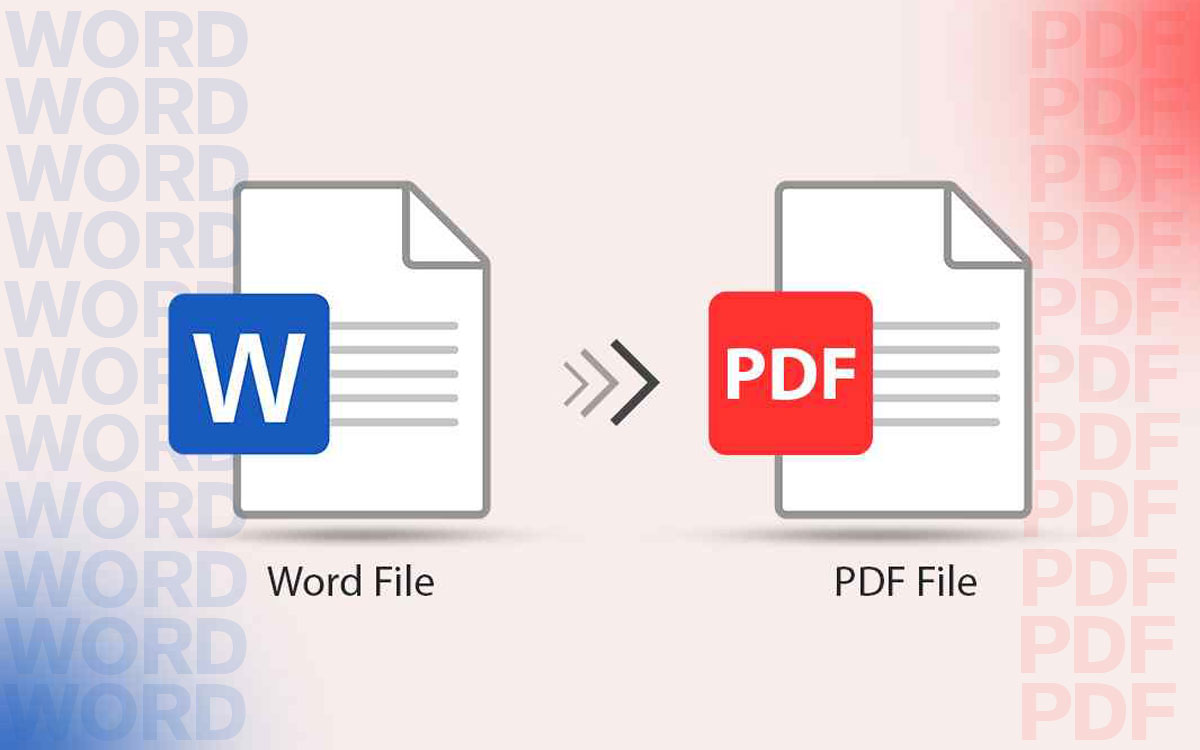
Converting PDF files into formats like text documents, Word, Excel, PowerPoint, high-resolution images, HTML, EPUB, and more can often be challenging, especially when accuracy and formatting matter. With Shield PDF Editor, this process becomes fast, simple, and highly reliable. The software allows you to seamlessly transform PDFs into a wide range of editable formats while preserving the original layout, fonts, images, and structure. Its advanced OCR technology makes it easy to convert scanned or image-based PDFs.
Look at the comparison chart below to know the difference between the Free and Pro versions.
Features |
Free Trial |
Recommended
Full Version |
|---|---|---|
Annotate and Comment PDF Files |

|
|
Create PDF Files |
|
|
Convert Word, Excel, PowerPoint or other format file to PDF |
|
|
Secure and Sign PDF Files |
|
|
Compress PDF Files |
|
|
Extract and split PDFs |
|
|
Redact Sensitive Information |
|
|
Digitally Sign PDF Documents |
|
|
Remove Pages From the PDF |
|
|
Insert Blank Page and from PDF |
|
|
Duplicate PDF |
|
|
Add/Remove Watermark |
|
|
Crop PDF |
|
|
Move Pages in PDF |
|
|
Convert PDFs to Word, Excel, PowerPoint, or other format files(first 3 pages of PDF only in trial version) |
|
|
Merge PDFs(Up to 3 files or first 3 files in trial version) |

|
|
Edit Text in PDF Files |
|
|
Advanced Permission Restrictions |
|
|
Make Scanned PDF Searchable and Selectable |
|
|
Batch Process PDF Documents (Convert, compress, create, protect, unprotect, OCR) |
|
|
Repair PDF |
|
|
Convert from scanner to PDF |
|
|

60-Days Money Back Guarantee 100% Risk-Free.Your satisfaction is everything to us. If you are facing issues with the product, contact us within 60 days of purchase, and we will process a refund against the product purchase. |
Free Download |
INR 2499
 Buy Now Buy Now
|
Upgrade to the Pro version to unlock unrestricted PDF editing, conversion, compression, and more.
Our PDF solution offers fast, accurate conversion with reliable performance for everyday tasks. It simplifies editing, merging, and
managing documents while ensuring complete data security and smooth workflow efficiency.

Edit and manage PDFs easily from students to professionals; everyone can use it.

All-in-one PDF app to quickly edit, sign, secure, merge, and manage documents.

Open, view, edit, and organize large PDF files quickly without any lag or delays.

A tested & virus-free PDF scanner, reader, and editor trusted by Window users.






 Download Now
 Buy Now